Projects: Creating and Managing Vacancies
Projects
A project brings together related vacancies and helps organize recruitment by client, product, department, or area of work.
Every vacancy must be linked to a project. The project page shows its main details and all vacancies associated with it.
What A Project Provides
- Groups related vacancies in one place.
- Provides quick navigation to the project's vacancies.
- Shows the number of open vacancies in the project.
- Stores the project description and external identifier.
- Simplifies vacancy search and filtering.
How To Open The Projects List
- In the sidebar, open the Projects section.
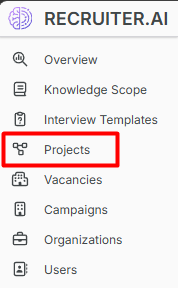
- The table of available projects will open.

The table displays:
| Column | Description |
|---|---|
| Name | Project name |
| External ID | Project identifier in an external system |
| Vacancy count | Number of vacancies linked to the project |
| Created | Creation date |
| Last modified | Date of last update |
How To Create A Project
- On the projects page, click Create.

- Fill in the form:
- Name — required field, 3 to 120 characters;
- External ID — optional identifier;
- Description — additional information about the project.
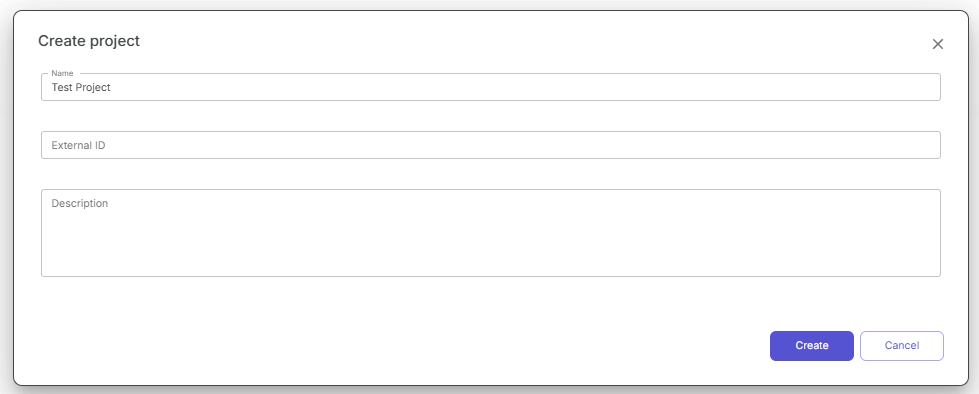
- Click Create.
After creation, the project page will open.
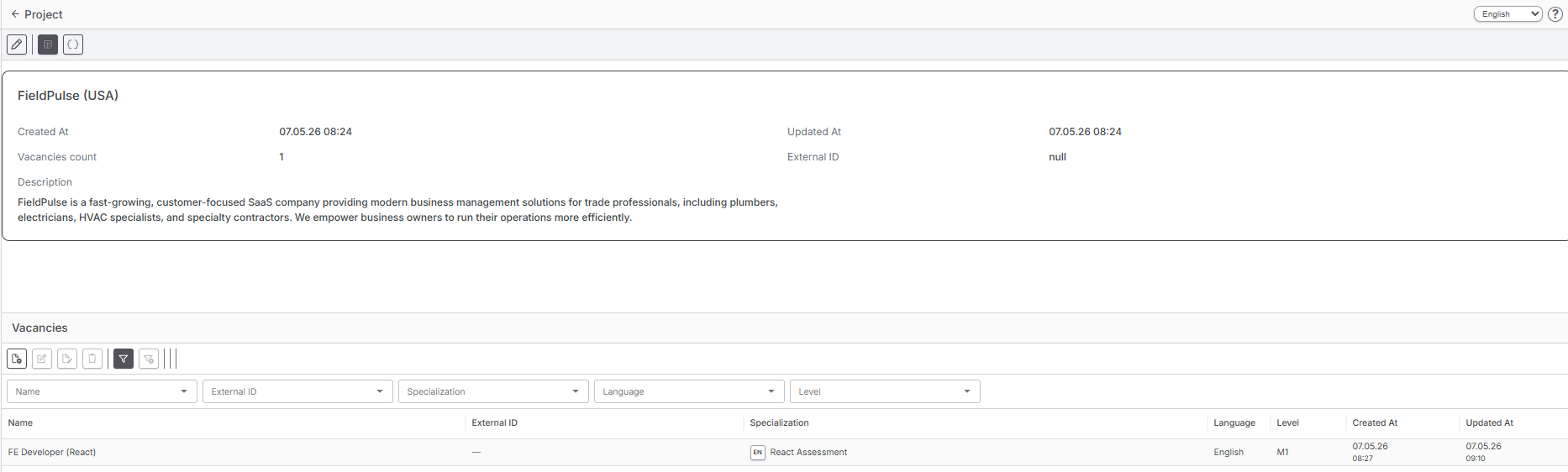
Project Page
The project page displays:
- name;
- description;
- external ID;
- creation and update dates;
- number of linked vacancies;
- table of project vacancies.
From the vacancy table, you can create a new vacancy or open an existing one.
How To Edit A Project
- Open the project.
- Click Edit.
- Update the details.
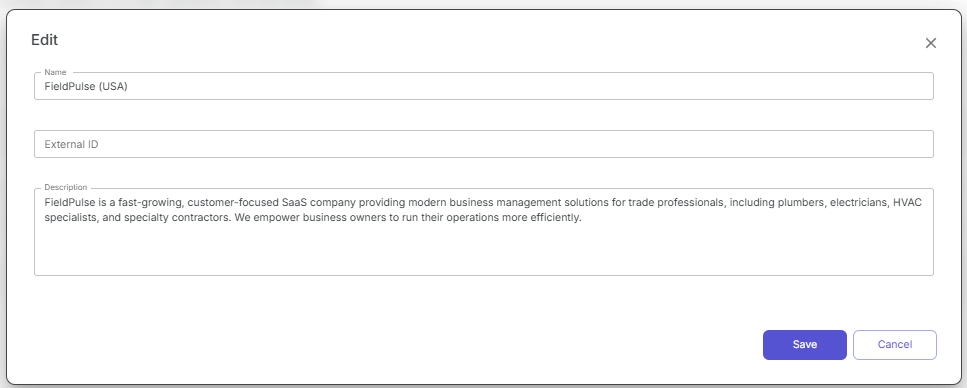
- Save the changes.
How To Delete A Project
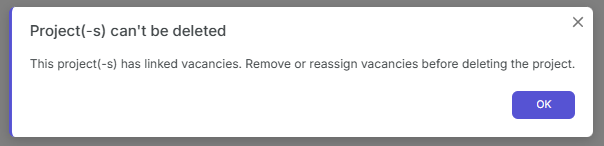
A project cannot be deleted while it has linked vacancies. First, delete the vacancies or move them to another project.